Image comparison
Any image type can be opened here. Three ways to look: side by side, an overlay with a slider for the right image, and a difference image. Zoom and pan are shared. Fit, 1:1 (one image pixel per screen pixel) and pinch work on both panes at once.
Local only. Pixels are compared on this Mac. Images are not uploaded. Why that matters
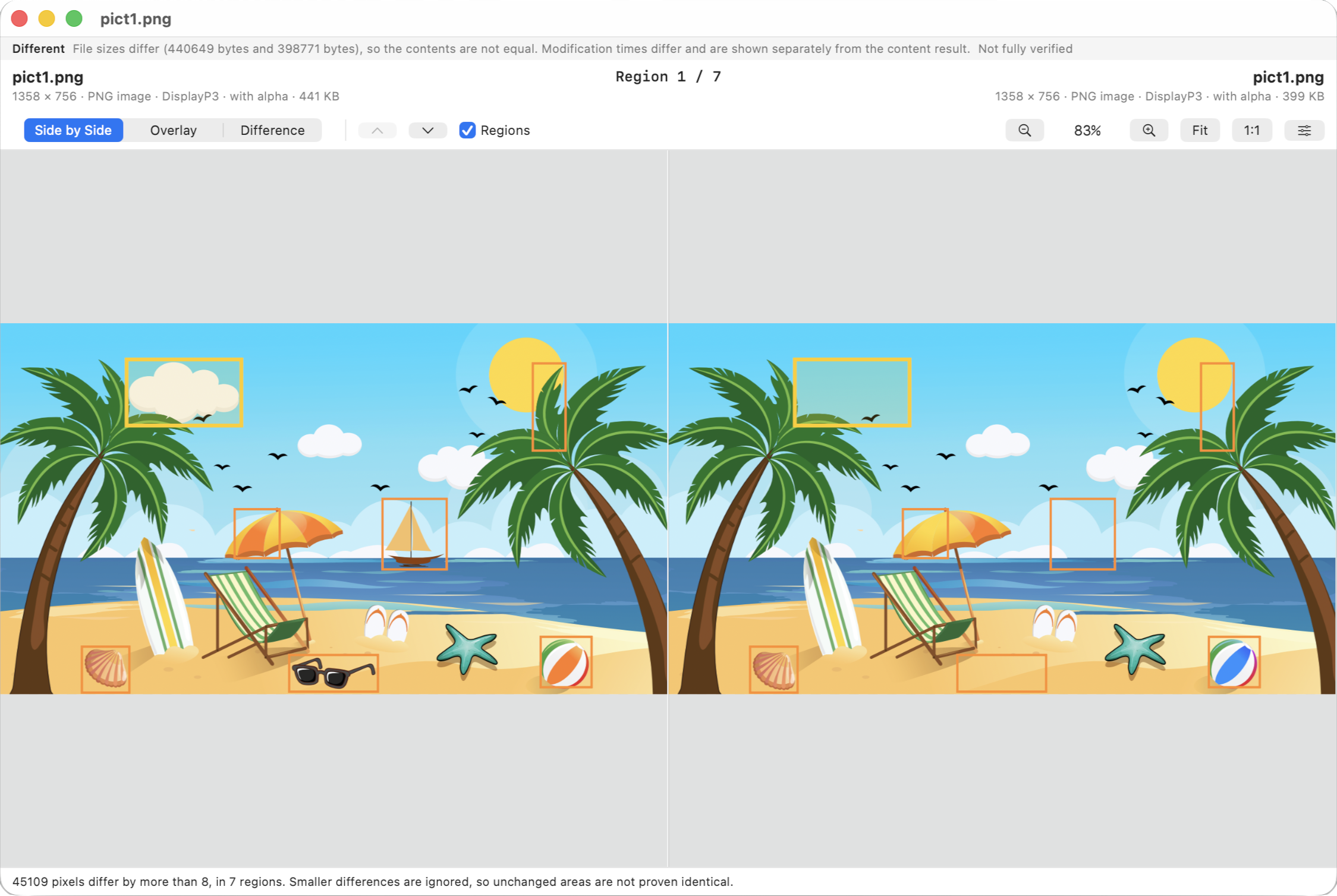
When pixels are compared
Only when both images have the same width and height. If they do not, the window says so, and only side by side is available, because positions do not correspond. Nothing is resized or aligned to force a fit.
Both images are converted to 8-bit sRGB with premultiplied alpha, then compared channel by channel, alpha included. Colours outside sRGB are clamped. Orientation metadata is applied. Only the first frame of an animation is used. A fully transparent pixel equals any other fully transparent pixel.
- Above 25 million pixels: shown, not compared.
- Above 120 million pixels: not opened.
Exact or tolerance
These start from Viewers → Images. You can also switch in the window.
| Mode | Default | Behaviour |
|---|---|---|
| Exact pixels | On | Any channel difference counts. Pixel-identical is stated only when every channel of every pixel matched. Tolerance and smallest-region are not applied. |
| Tolerance and regions | Off | Differences up to a limit are ignored. The result always says it is not an exact match, because those small differences were not counted. |
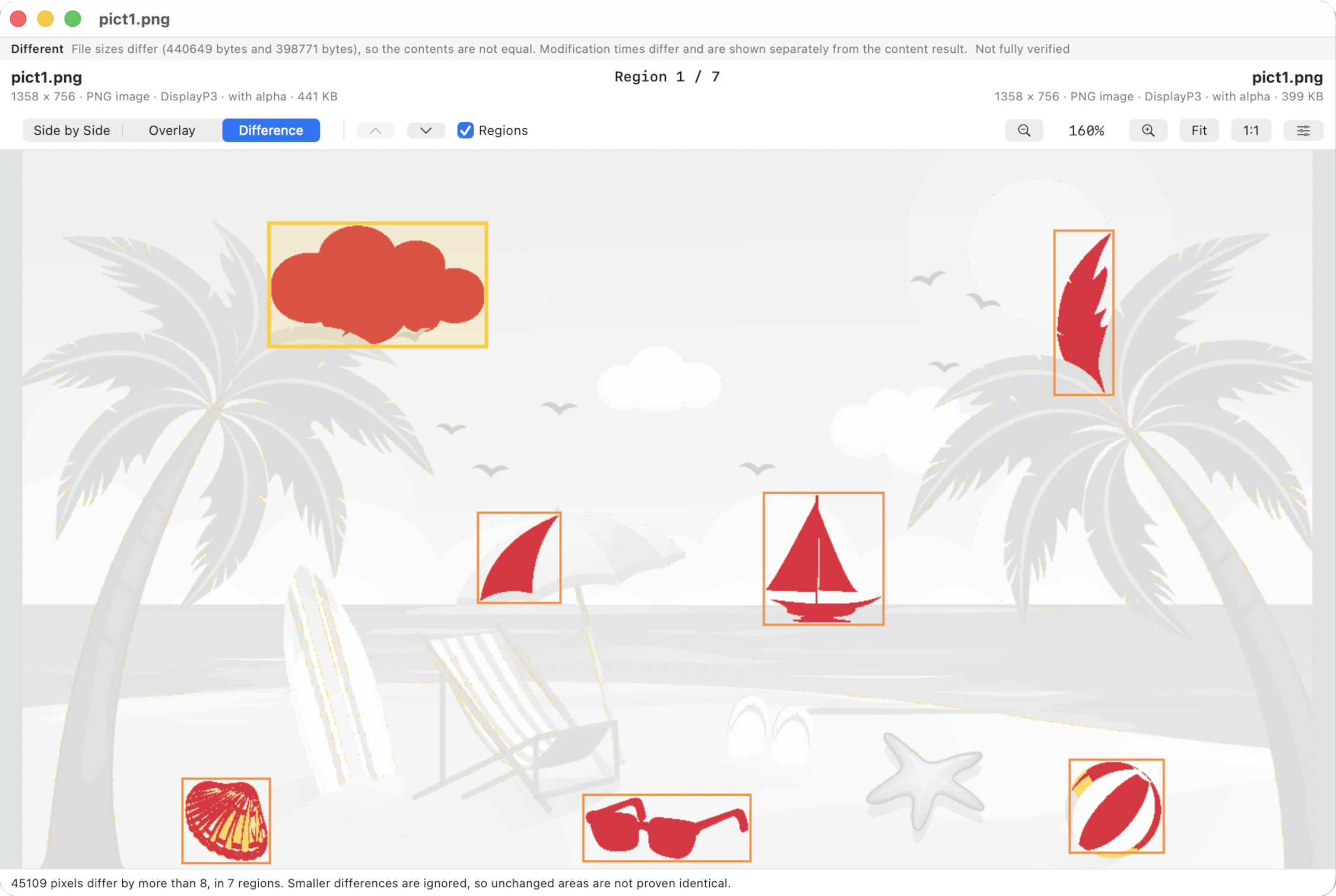
The difference measure is either the largest channel difference or a weighted perceptual value. Tolerance is 0–255 (default 8). Changed pixels within the merge distance (default 6 px) form one region. Regions smaller than the minimum (default 4 px) are dropped in tolerance mode. Up to 5,000 regions are listed, top to bottom, left to right, and Previous / Next Difference walks them.
Difference image
Changed pixels are red. Small ignored differences are yellow. Everything else is a faded copy of the left image.
Overlay
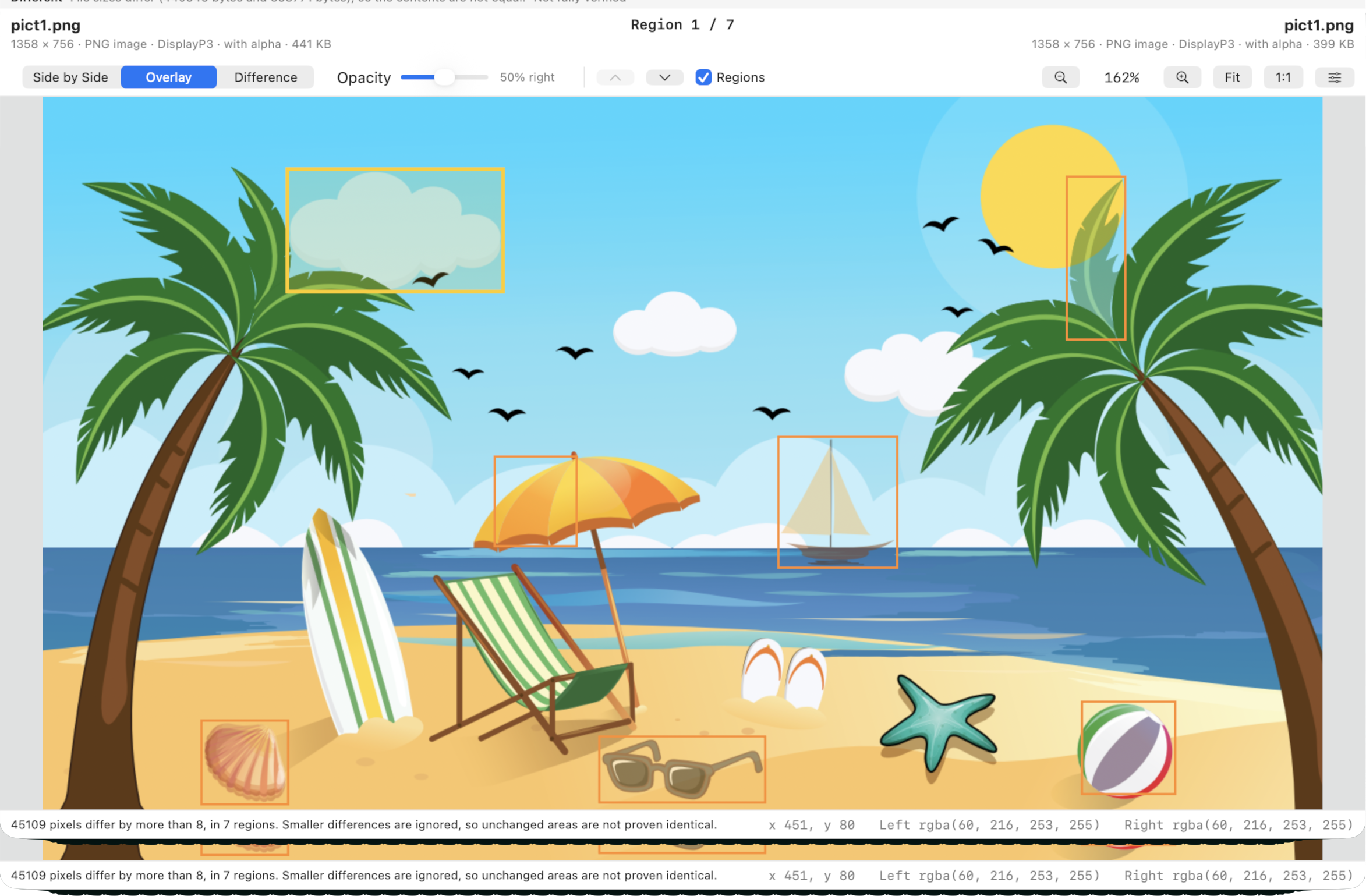
Overlay selected, the right image partly transparent over the left, slider visible, one obvious mismatch (the cloud or the sail) showing through. Include the zoom percentage and Fit / 1:1.
Hover
The pointer position is shown in the header. When the images are the same size, you get both colours at that pixel.
Sometimes comparing document content isn't enough — visual differences matter too. DiffMan allows you to compare documents as images, helping you detect changes in layout, formatting, fonts, and other visual elements that text comparison might miss. You can view pages side by side, use a transparency overlay, or highlight pixel-level differences to spot even subtle changes. This is especially useful for reviewing contracts, reports, and other documents where visual consistency matters.
Image comparison stays available after the three-month introduction. It is not gated by the document licence.