Folder comparison
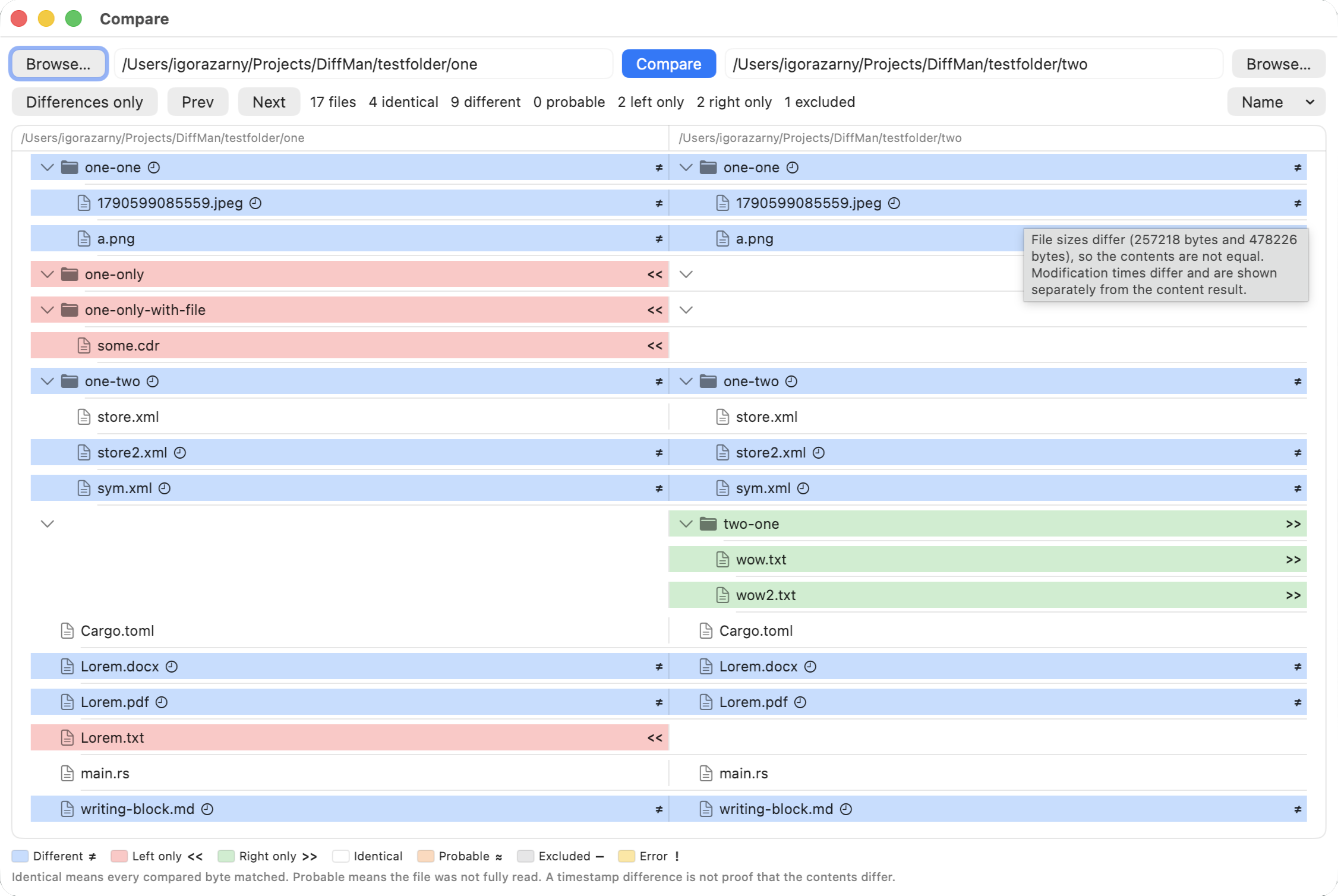
Give DiffMan two folders. It walks both trees and tells you, for every name, whether the files match, differ, exist on one side only, were skipped, or could not be read. Double-click a pair to open the text, image, or document viewer.
How to start
- Browse for a folder on the left, or drop one onto that side.
- Do the same on the right. After one side is a folder, the other side will only accept a folder.
- Press Compare. Each window keeps its own paths, expansion, filter and sort.
From the terminal: DiffMan ./left ./right. If the sandbox cannot read a typed path, that side is reported as inaccessible. It is not treated as identical.
What the colours mean
| Status | What you see | What it actually means |
|---|---|---|
| Identical | No wash, or a quiet row | The bytes that were compared matched. If only samples were read, the result still says identical and also says it is not fully verified. |
| Different | Blue row, ≠ | Sizes differ, or the compared bytes differ. A size difference is always different content. |
| Left only / right only | Red «« or green »» | The name exists on one side. |
| Probable | Peach | No content check ran. A typical case: timestamps differ and “when timestamps differ, compare contents” is off. |
| Excluded | Grey | An ignore rule matched. The item is left out of the identical and different counts. |
| Error | Yellow, ! | Unreadable, a link cycle, a target outside the selected folder, and similar. Never counted as identical. |
A different modification time, by itself, never proves the files differ and never proves they match. The default timestamp tolerance is two seconds. Metadata-only differences can be listed separately from the content result; that toggle lives in Settings.
How files are compared
By default DiffMan looks at size first. If the sizes differ, the files are different and the contents may not be read. If sizes match, it samples 1,024 bytes from the start, one middle region, and the end. Matching samples are Identical, with fully verified off unless those windows already cover the whole file.
Turn on full byte-for-byte verification when you need every byte compared. That streams both files. It is not a checksum. Details and defaults are on the settings page.
Copying
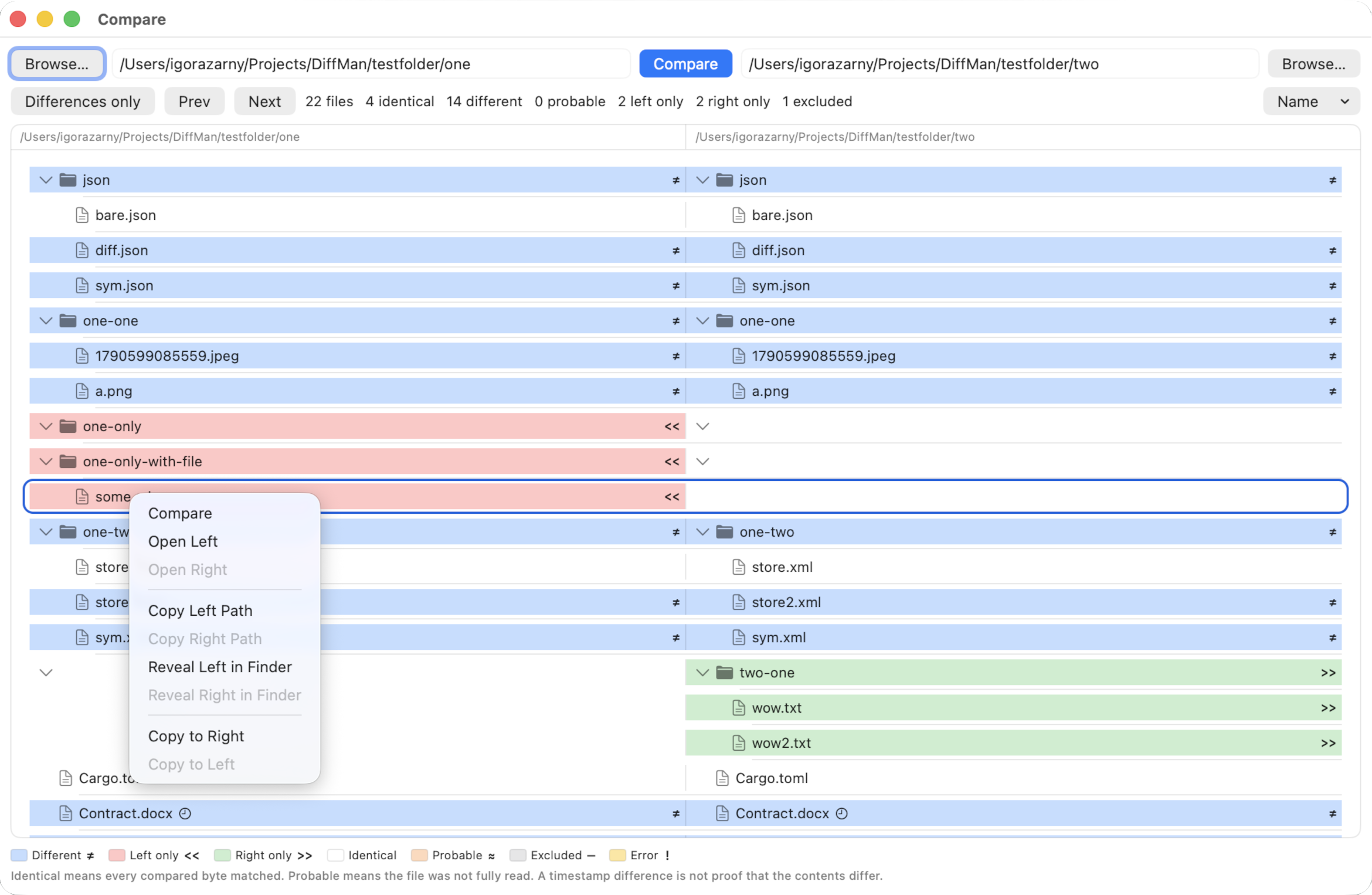
Comparison never writes. Copy is an explicit command plus a confirmation sheet. Replacing something that already exists needs a separate switch. A folder copy replaces the destination folder; it does not merge. Names hidden by ignore rules on disk are still copied, because the copy is of the folder that is actually there.
Each item is written to a temporary name beside the destination and replaces the destination only when that write has finished. Cancel before the replace and the destination is unchanged. Copying a folder into itself is refused. A file and a folder that share a name are not swapped automatically.
Ignore rules
Default exclusions are the exact name .DS_Store and the extensions class, log, and tmp. An ignored directory is not descended into. A file that exists on only one side and matches a rule is excluded, not left-only or right-only.
Extensions use the last extension only and ignore case, so archive.tar.gz matches gz. Other rule kinds are case-sensitive. In a name, * does not cross folders. In a path pattern, ** does. Empty patterns match nothing. The Ignore tab is documented with the other settings.
Symbolic links
Links are compared as paths, not as the target, unless you turn on follow. Even then, a target outside the selected folder is not read, a cycle is an error, and nesting deeper than 256 levels stops with an incomplete scan.
Opening a file from the tree
Double-click opens a viewer for that pair: text, image, or document (Word, OpenDocument, RTF, PDF). JSON, YAML, TOML, XML, INI and properties files open as text with a Semantic switch. Two files dropped on the main window use the same viewers inline.
Folder comparison stays available after the three-month introduction. Markup and Pages are the parts that later need a licence.